Managing the schedule
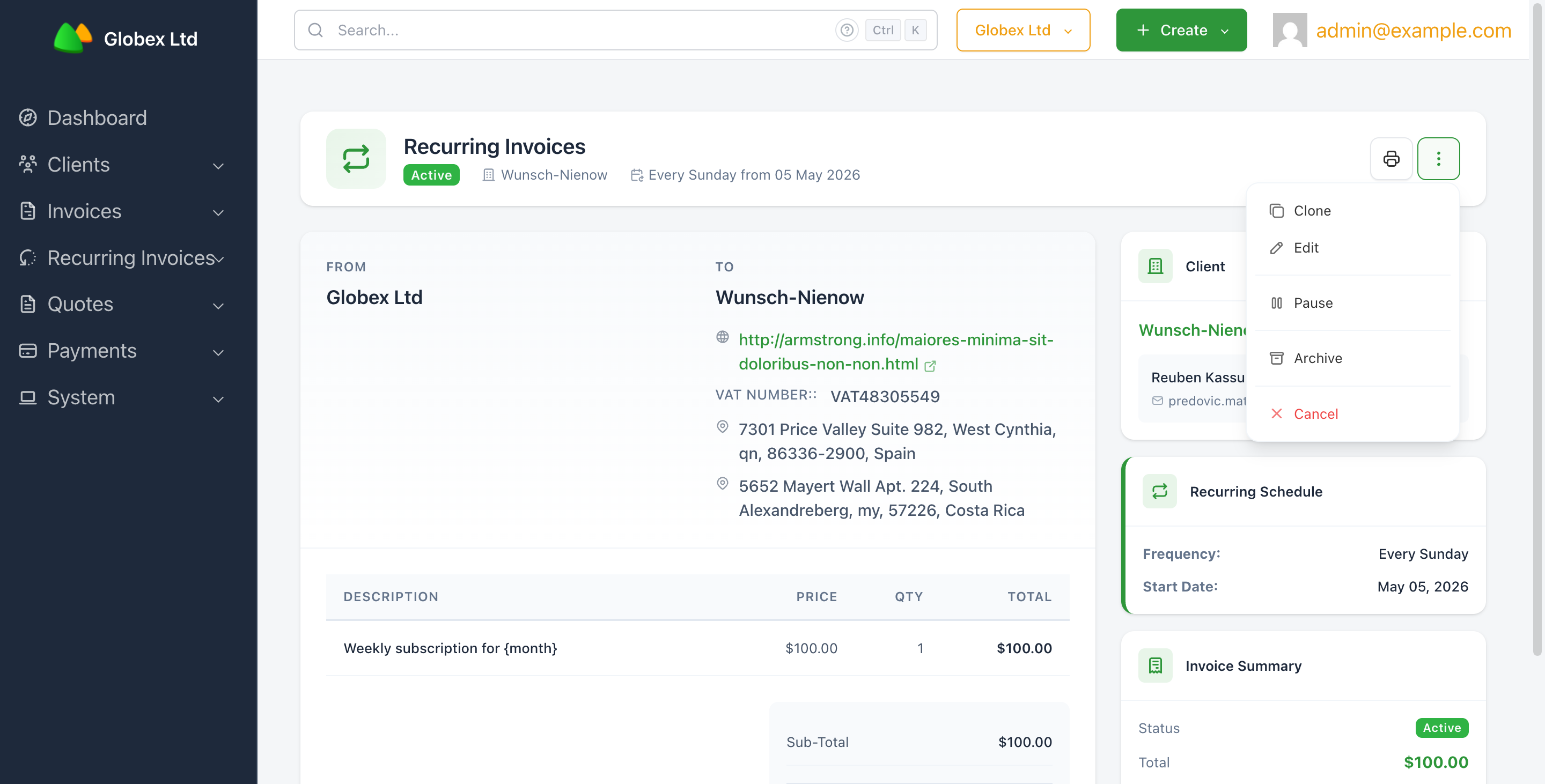
Once a recurring invoice exists, you control its lifecycle from the view page — the green button at the top right is the primary action, and the ⋮ More Actions dropdown next to it holds the rest.
States
A recurring invoice moves through these states:
Draft— saved but not generating invoices yet. Editable.Active— the scheduler will generate invoices on matching dates.Paused— generation is temporarily stopped. The schedule is preserved and can be resumed.Complete— the schedule reached its end date or occurrence count. SolidInvoice sets this automatically; see Understanding the schedule.Cancelled— manually stopped. No more invoices will be generated.Archived— hidden from the default list views. Archive when you no longer want to see a recurring invoice but don't want to delete its history.
Activate a draft
A draft recurring invoice has a green Activate button at the top right. Click it to move the recurring invoice from Draft to Active. The scheduler picks it up on its next run.
Pause and resume
While a recurring invoice is Active, the More Actions dropdown includes a Pause option. Pausing stops invoice generation immediately; the schedule, line items, and end condition are kept exactly as they were.
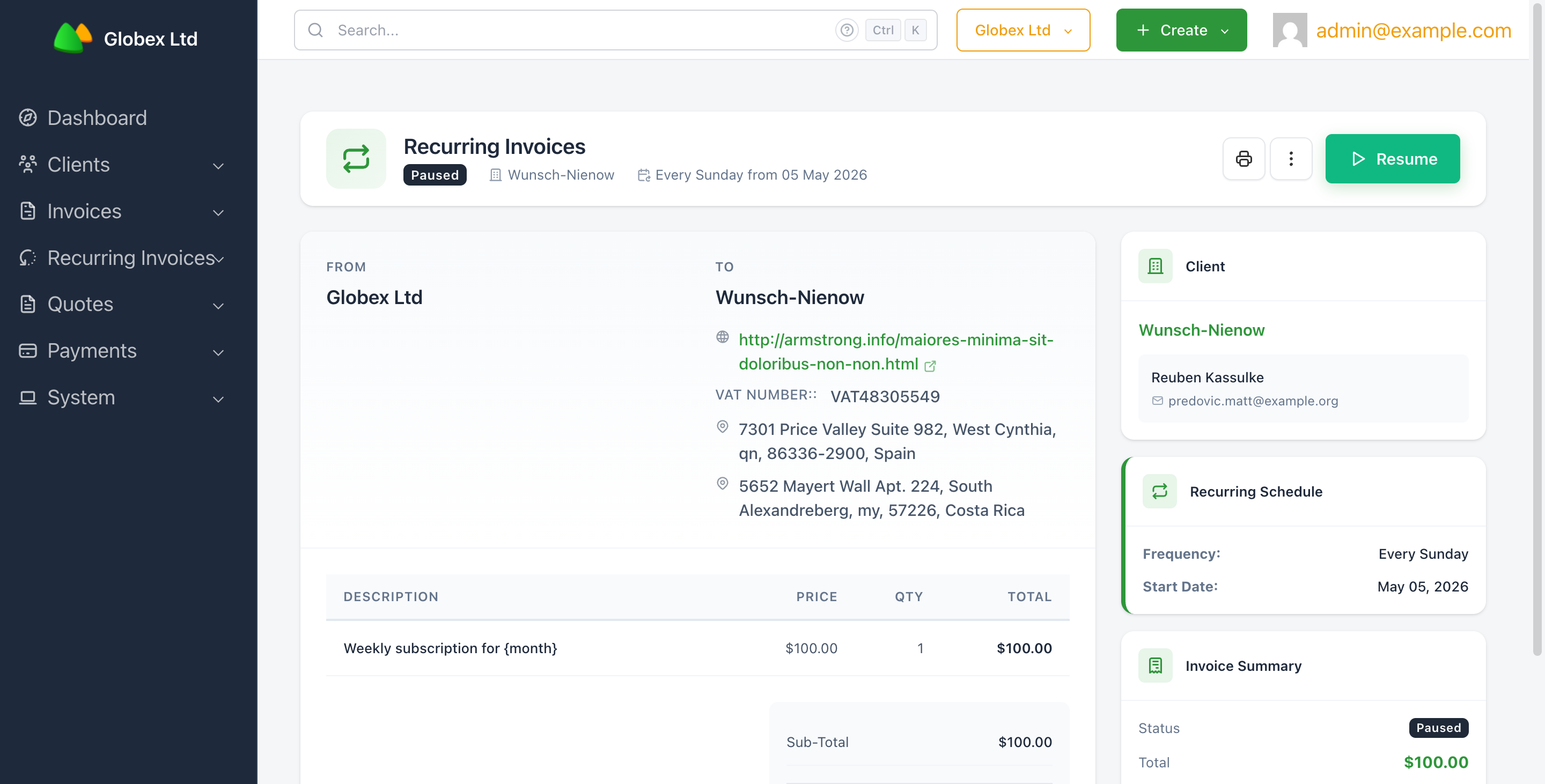
While the recurring invoice is Paused, the green button at the top right changes to Resume. Clicking it puts the schedule back in Active. Generation picks up from the next matching date — there's no catch-up for missed dates while paused.
Cancel
Cancelling permanently stops invoice generation. From More Actions, click Cancel. The recurring invoice moves to Cancelled. Already-generated invoices are not affected.
Use Cancel (rather than Pause) when you know the schedule should not continue — for example, the client has ended their subscription.
Archive
Archive (under More Actions) hides the recurring invoice from the default Active and Completed tabs on the list page. Archived recurring invoices stay in the system and appear under the Archived tab; their generated invoices are unaffected.
Edit
While a recurring invoice is Draft, Active, or Paused, click Edit from More Actions to change line items, the schedule, the start date, or the end condition. Saving an edit moves the recurring invoice back to Draft — you'll need to Activate it again afterward, which prevents an in-flight edit from accidentally generating an unintended invoice.
Clone
Clone (under More Actions) creates a new recurring invoice pre-filled from the current one. Useful when you have a working template and want to set up a near-identical schedule for another client.