Creating a recurring invoice
A recurring invoice is a saved template tied to one client. SolidInvoice generates a real invoice from it on the schedule you set — daily, weekly, monthly, or yearly — until you stop it or it reaches its end condition.
Open the create form
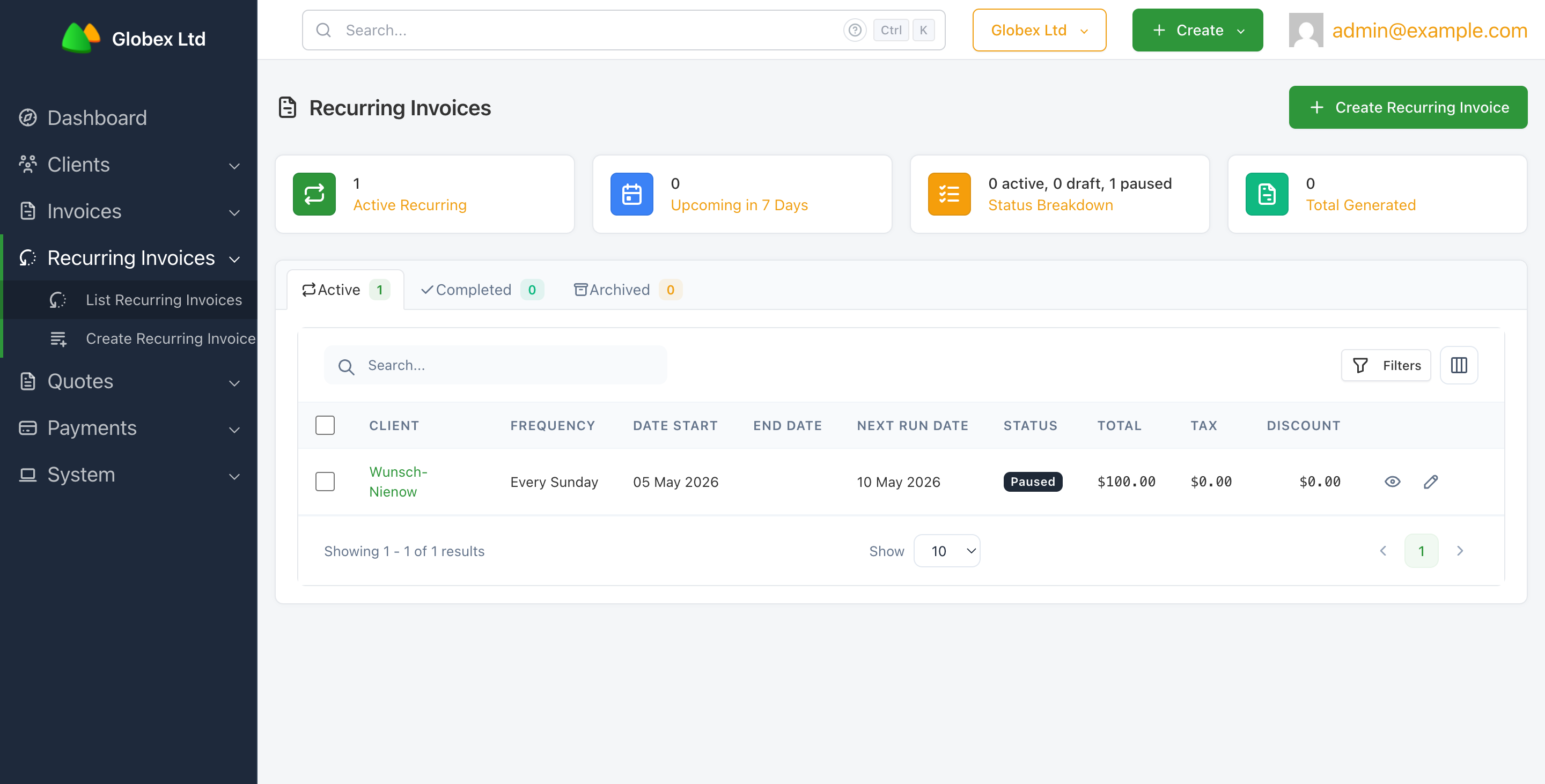
From the sidebar, click Recurring Invoices → Create Recurring Invoice, or click the green + Create Recurring Invoice button at the top right of the recurring invoices list.
Fill in the template
The top of the form is the same as a one-off invoice — pick the client, choose the contacts to send to, and add line items.
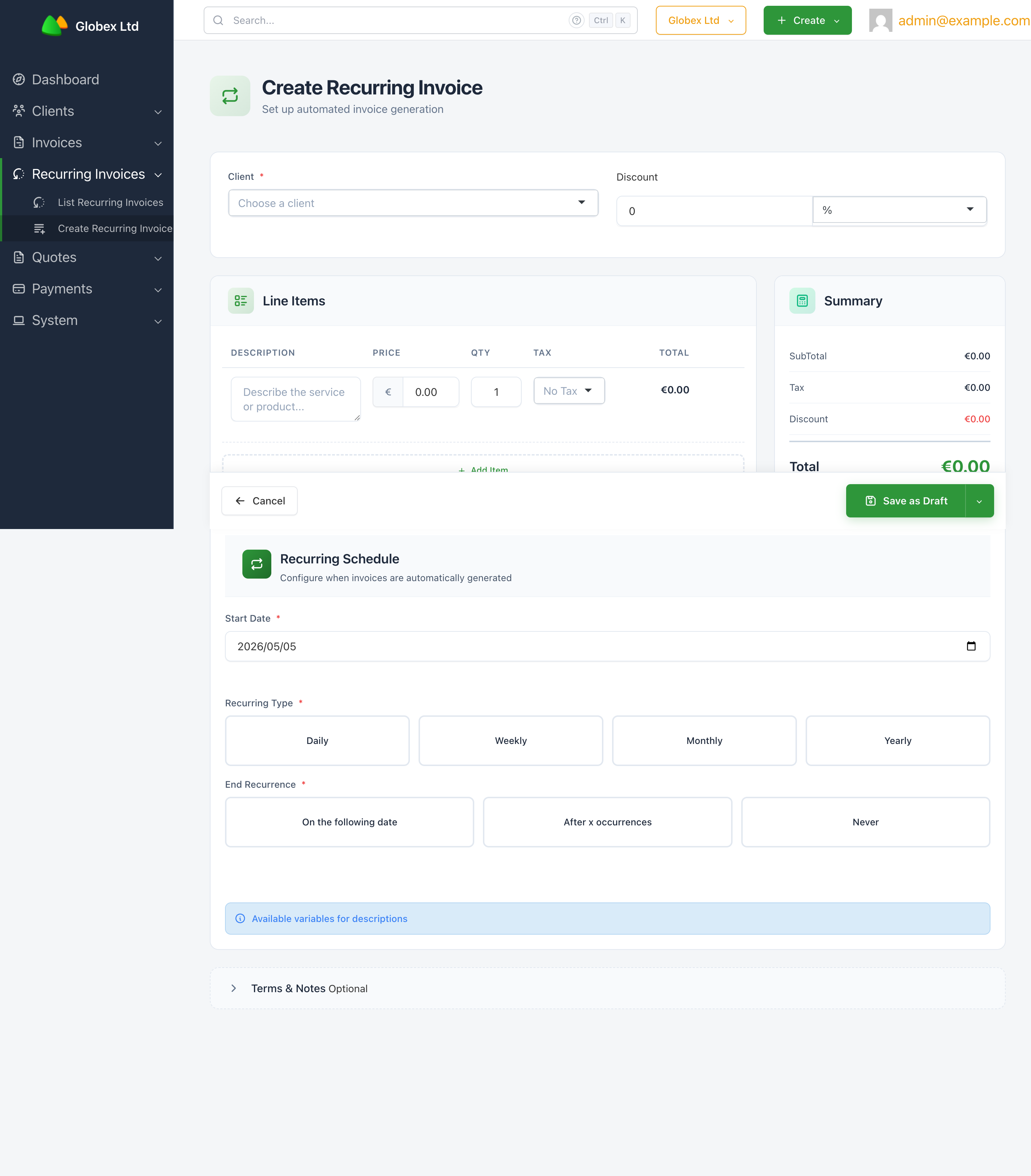
Client(required) — the client this recurring invoice is for. Once selected, aSend invoice to:checkbox list appears so you can pick at least one contact to receive each generated invoice.Discount(optional) — flat amount or percentage; applied to every generated invoice.Line Items(at least one) — description, price, quantity, and tax. The total at the bottom of the form is the per-invoice total.
Line item descriptions support placeholders that are filled in when each invoice is generated: {day}, {day_name}, {month}, and {year}. For example, Subscription for {month} becomes Subscription for May on a May invoice. Click Available variables for descriptions above the items to see the full list.
Terms & Notes is collapsed by default — click Toggle terms and notes section to expand it. Both fields apply to every generated invoice; notes stay internal and are never shown to the client.
Configure the schedule
The Recurring Schedule section is where you say when invoices get generated. See Understanding the schedule for the full breakdown — the short version is:
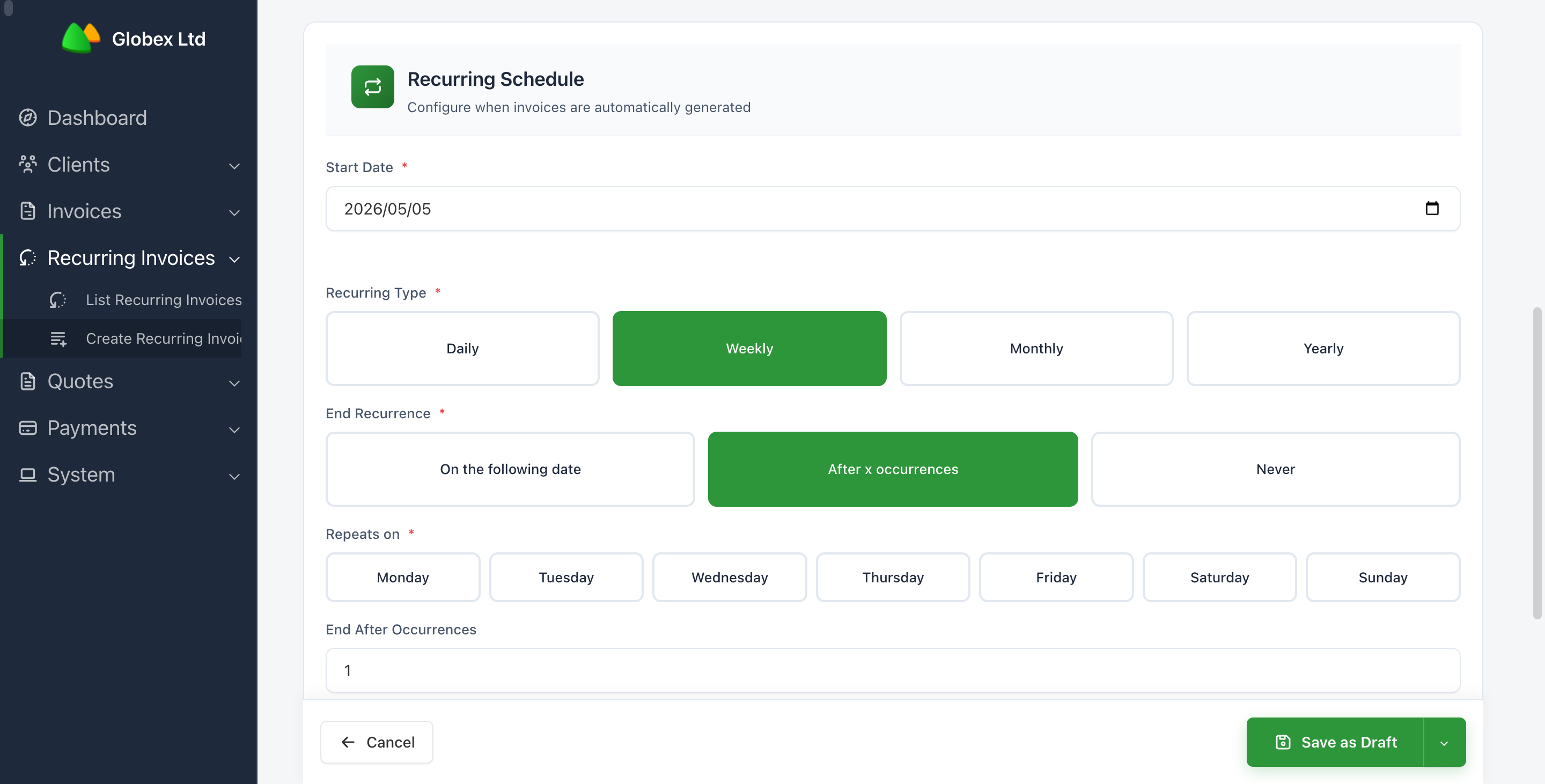
Start Date(required) — when the schedule begins. Defaults to today; can't be in the past.Recurring Type(required) —Daily,Weekly,Monthly, orYearly. Each type reveals its own follow-up field (days of the week, days of the month, months of the year).End Recurrence(required) — chooseNever,On the following date, orAfter x occurrences. The matching date or count field appears once you pick.
Save
Two save options are available from the green button at the bottom of the form:
Save as Draft— saves the template without generating any invoices. Useful if you want to review or edit the schedule before activating it.Save and Enable— open the dropdown next toSave as Draftand choose this to save the template and immediately activate it. The first invoice is generated the next time the scheduler runs after the start date is reached.
After saving you land on the recurring invoice's view page. From there you can Activate a draft, or move on to Managing the schedule once it's running.
Generated invoices only get created if SolidInvoice's background scheduler is running. Set this up once during installation — see Cron job setup. Without it, an active recurring invoice still won't produce any invoices.