Client list
The Clients page (sidebar → Clients → List Clients, or /clients) is the entry point for everything client-related — viewing the list of clients you bill, finding a specific client, and archiving the ones you no longer work with.
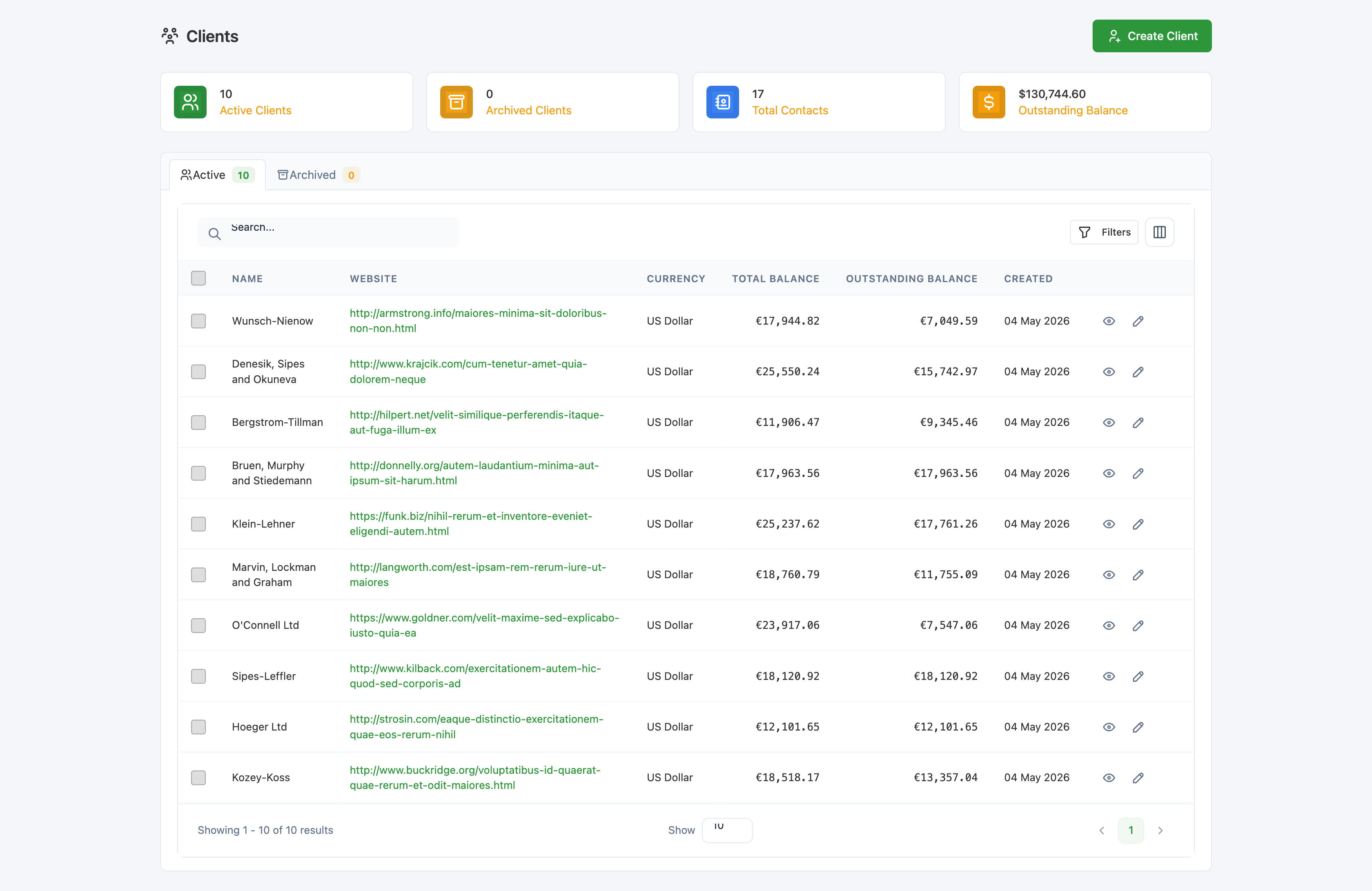
What's on the page
The top row shows four at-a-glance stats for the current company:
Active Clients— count of clients you currently bill.Archived Clients— count of clients you've archived.Total Contacts— sum of contacts across all clients.Outstanding Balance— total unpaid amount across all your clients' invoices.
Below the stats are two tabs:
Active— clients available for new quotes and invoices.Archived— clients hidden from quote/invoice creation but kept for historical records.
Each tab shows its own grid with the same columns: Name, Website, Currency, Total Balance, Outstanding Balance, and Created. The list is searchable (search box above the grid), and you can filter by currency or by date range using the Filters button on the right. Click the column-toggle icon next to it to hide or show columns.
The two icons at the right of every row are View (eye icon) — opens the client's detail page — and Edit (pencil icon) — opens the same form used to create the client.
Creating a client
Click the green + Create Client button at the top right. See Creating a client for the full form walkthrough.
Archiving a client
Archiving keeps a client's history (quotes, invoices, payments, contacts, addresses) but hides them from the list of clients you can pick when creating new quotes or invoices.
- On the
Activetab, tick the checkbox next to one or more clients in the list. - Click the
Archivebatch action that appears in the toolbar above the grid.
Archived clients move to the Archived tab. They no longer count toward the Active Clients stat, and they don't appear in the client picker on new quotes/invoices.
Archiving is a soft action — nothing is deleted. You can restore an archived client at any time, and all their invoices, quotes, and payments remain visible from the dashboard and reports.
Restoring an archived client
Switch to the Archived tab, tick the client(s), and use the Activate batch action. The clients move back to Active and become available for new work again.
Deleting a client
Deletion is permanent and available from both the Active and Archived tabs — you don't need to archive a client before deleting them.
- Tick the client(s) to remove on either tab.
- Click the
Deletebatch action.
Deleting a client is fully cascading: every quote, invoice, recurring invoice, payment, contact, address, and credit balance attached to the client is permanently deleted along with the client record. The client and all their history disappear from the dashboard, reports, and totals.
If you want to stop billing a client but keep their history for reporting and tax purposes, archive them instead. Only delete when you're certain you don't need any record of the relationship.