Sending, printing, and downloading invoices
Once an invoice is ready, you can deliver it to your client by email, download it as a PDF, or print it. All three options are available from the invoice view page.
Emailing an invoice
Click Send in the invoice toolbar to email the invoice to the client.
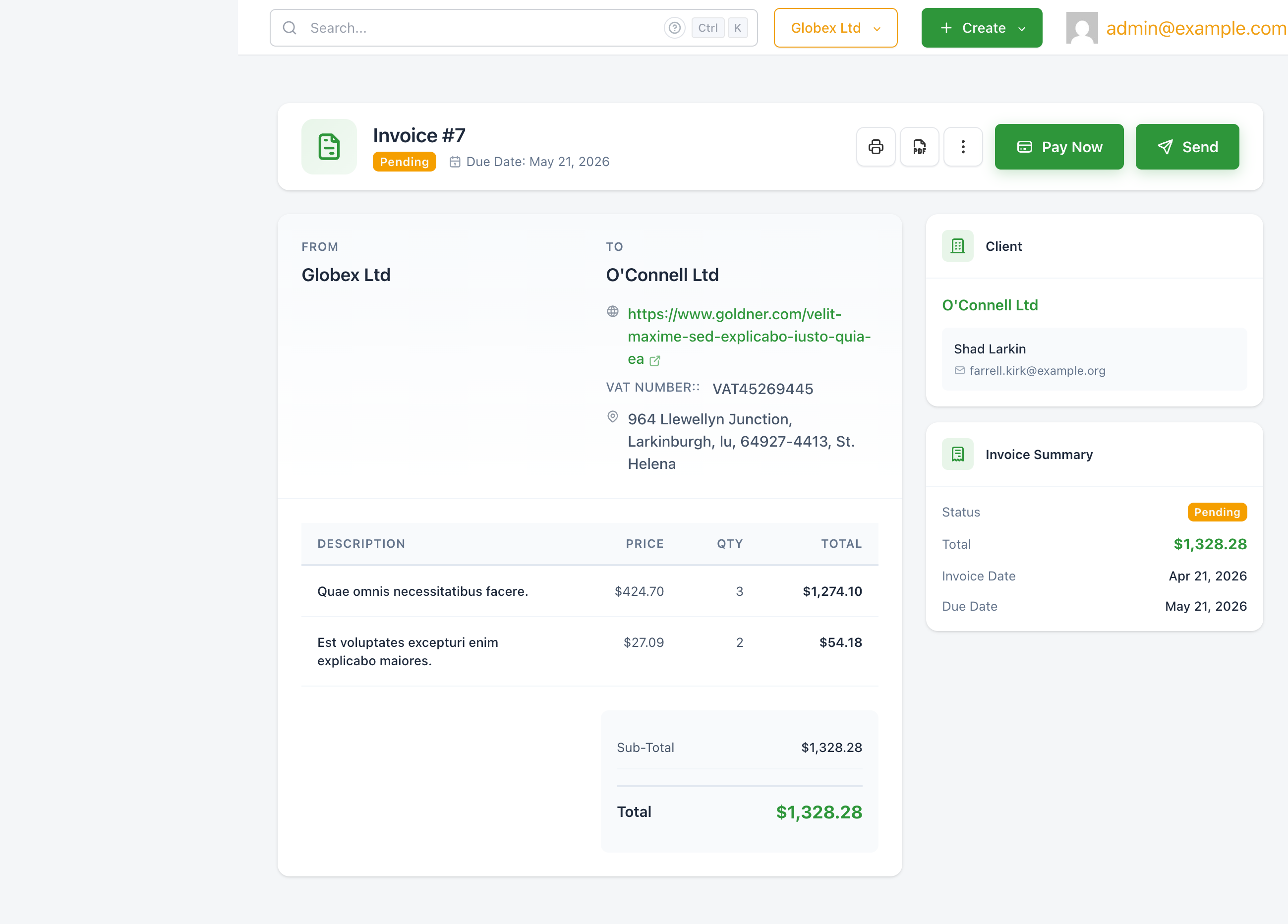
Clicking Send does two things:
- Transitions the invoice status from Draft to Pending (if it was still a draft).
- Emails the invoice to every contact on the client that has an email address on file.
The email includes a link the client can use to view and pay the invoice online, and the invoice PDF is attached automatically.
The email subject is configurable. Go to System → Settings → Invoices to change the default subject. Use the {id} placeholder to include the invoice number — for example, Invoice #{id} from Acme Corp.
You can also set a BCC address on the same settings page to receive a copy of every invoice email.
Sending again
If the client missed the first email or requests a copy, click Send again from the invoice toolbar. The invoice must already be in Pending or Overdue status. Sending again does not reset the automated reminder schedule.
Manual payment reminders
To send a payment reminder without re-sending the full invoice, use Send Reminder from the More Actions (···) menu. See Payment reminders for details.
Downloading as PDF
Click the PDF button in the invoice toolbar to download the invoice as a PDF file.
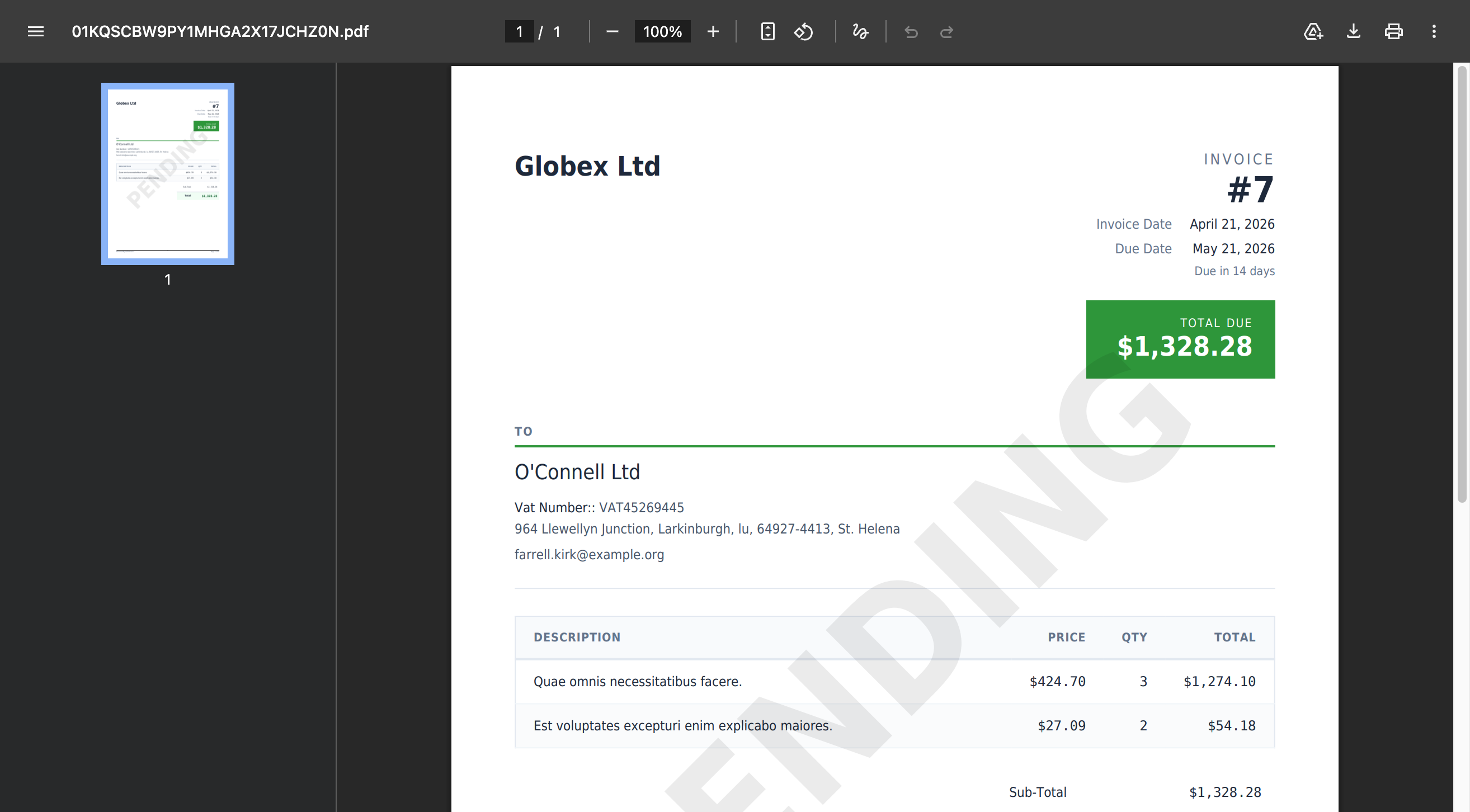
The PDF includes:
- Your company name and details
- Invoice number, invoice date, and due date
- Total due in a highlighted box
- Client name, VAT number, address, and email
- Line items with price, quantity, and totals
- Sub-total, tax breakdown, and grand total
- Payment link (if the invoice is unpaid)
- Terms (if you added any)
- A diagonal watermark showing the invoice status (e.g. PENDING, PAID)
The PDF is generated server-side and is always up to date. If you edit the invoice after downloading, download it again to get the latest version.
Printing
Click the Print button (printer icon) in the invoice toolbar to open the browser's print dialog.
SolidInvoice sends the invoice to the browser's native print function. You can print to a physical printer or use your operating system's "Print to PDF" option as an alternative to the built-in PDF download.