Payment reminders
SolidInvoice can automatically send payment reminder emails to clients for unpaid invoices. Reminders run on a fixed schedule — one optional reminder before the due date, then at days 1, 7, and 14 after the invoice becomes overdue.
You can also send a reminder manually at any time from the invoice view.
How reminders work
Each invoice can receive up to 4 automated reminders:
| Reminder | When sent | Tone |
|---|---|---|
| Pre-due | N days before the due date (configurable, default 3) | Friendly |
| Overdue — day 1 | 1 day after the due date passes | Polite |
| Overdue — day 7 | 7 days after the due date | Firm |
| Overdue — day 14 | 14 days after the due date | Urgent (final) |
Reminders are sent once per invoice per stage — the same reminder is never sent twice for the same invoice. After the day-14 reminder, automated reminders stop and an escalation notification is sent to your internal users.
Only invoices with a Pending or Overdue status receive automated reminders. Paid, draft, and cancelled invoices are skipped.
Enabling reminders
Go to System → Settings → Invoices tab and scroll down to the Payment Reminders section.
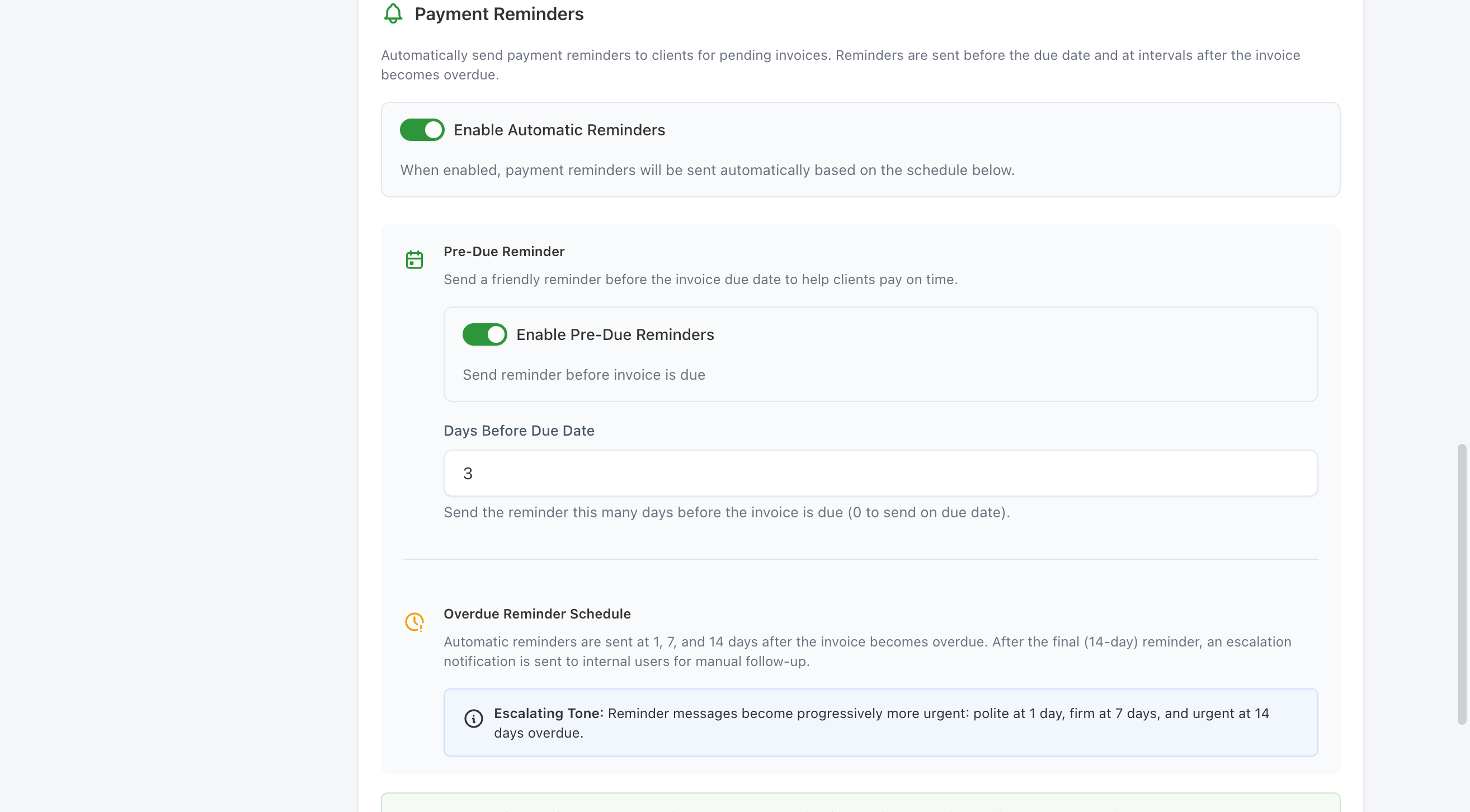
Toggle Enable Automatic Reminders on to activate the full reminder schedule. When this is off, no automated reminders are sent for any invoice — including pre-due ones.
Pre-due reminder
The pre-due reminder is sent before the invoice's due date to give clients a heads-up before the invoice becomes overdue.
Under the Pre-Due Reminder sub-section:
- Enable Pre-Due Reminders — toggles this specific reminder on or off while leaving overdue reminders unaffected.
- Days Before Due Date — how many days before the due date to send it. Accepts 0–30; default is
3. Setting it to0sends the reminder on the due date itself.
Set Days Before Due Date to 0 to disable the pre-due reminder without turning off the toggle — this keeps the setting visible if you want to re-enable it later.
Overdue reminder schedule
The three overdue reminders fire at fixed intervals and cannot be individually disabled or rescheduled.
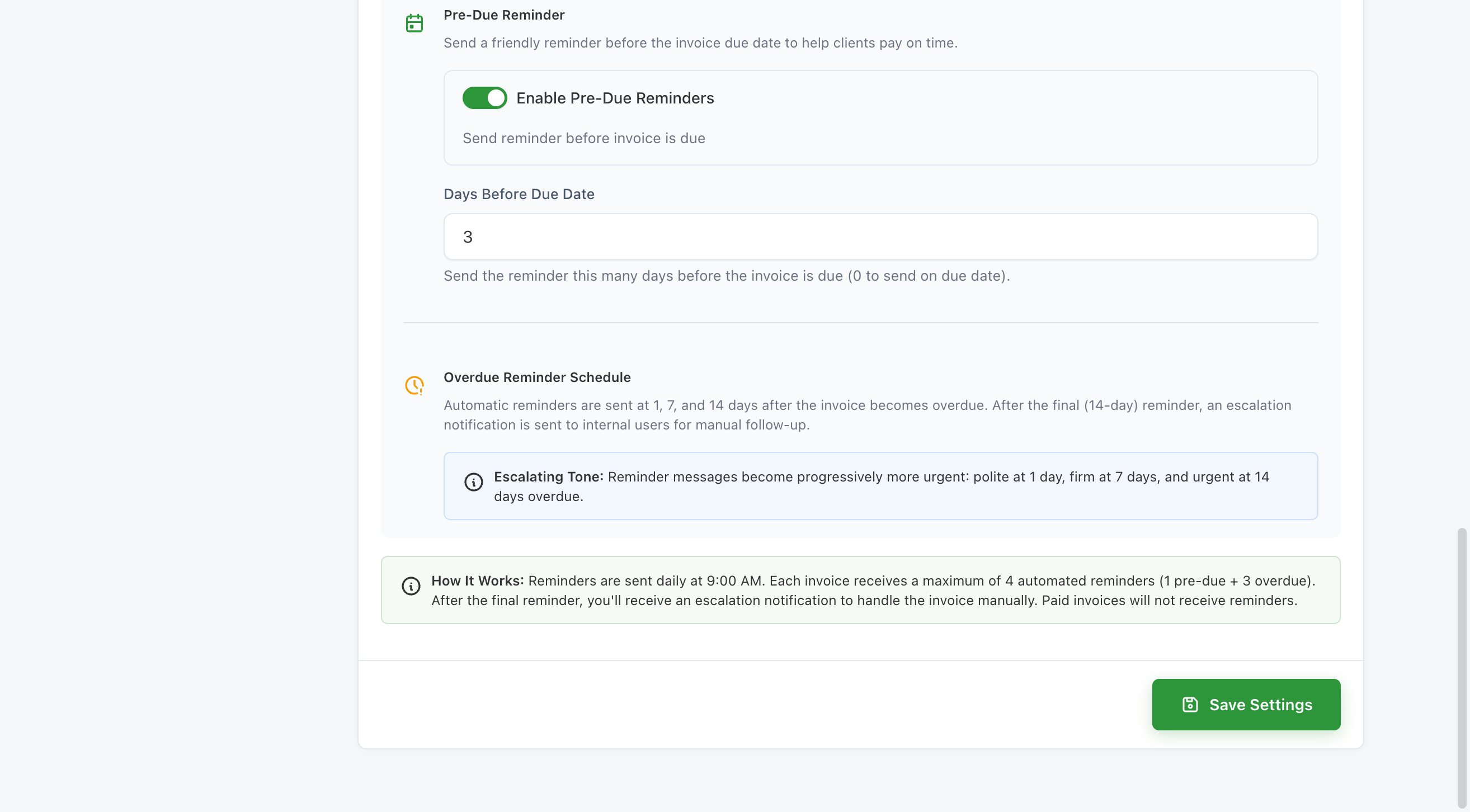
- Day 1 — a polite follow-up sent the day after the due date passes.
- Day 7 — a firmer reminder sent one week overdue.
- Day 14 — an urgent final reminder sent two weeks overdue.
The email subject and body escalate in tone at each stage, matching the urgency of the situation.
Reminders are checked and dispatched once per hour. There may be up to a one-hour gap between when an invoice becomes due and when the first reminder is sent.
Sending a reminder manually
You can send a reminder to a client at any time, regardless of where the invoice is in the automated schedule. Manual reminders do not affect or reset the automated schedule.
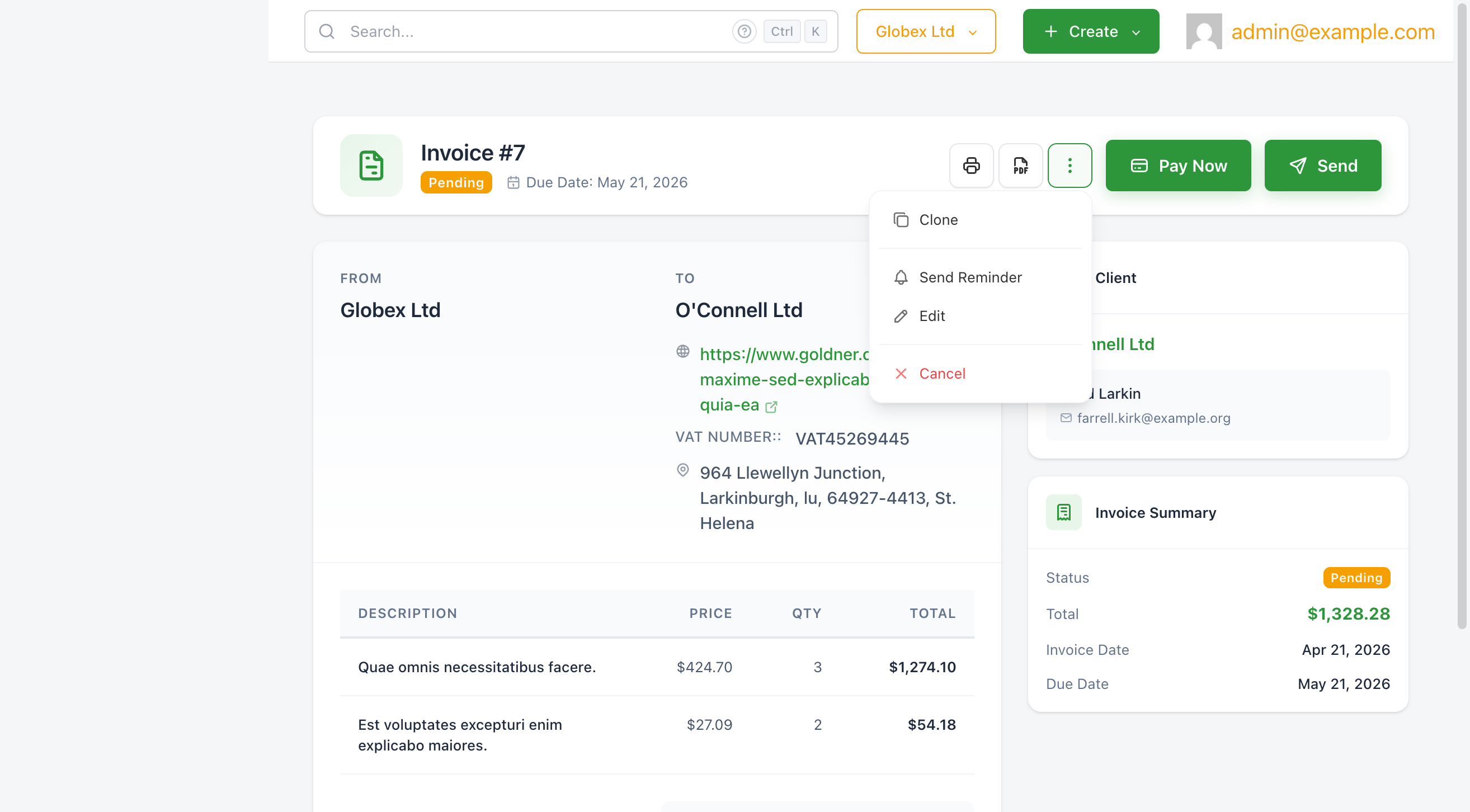
- Open the invoice you want to remind the client about.
- Click the
···More Actions button in the toolbar. - Select Send Reminder from the dropdown.
A confirmation modal appears showing the invoice number and the email addresses the reminder will be sent to.
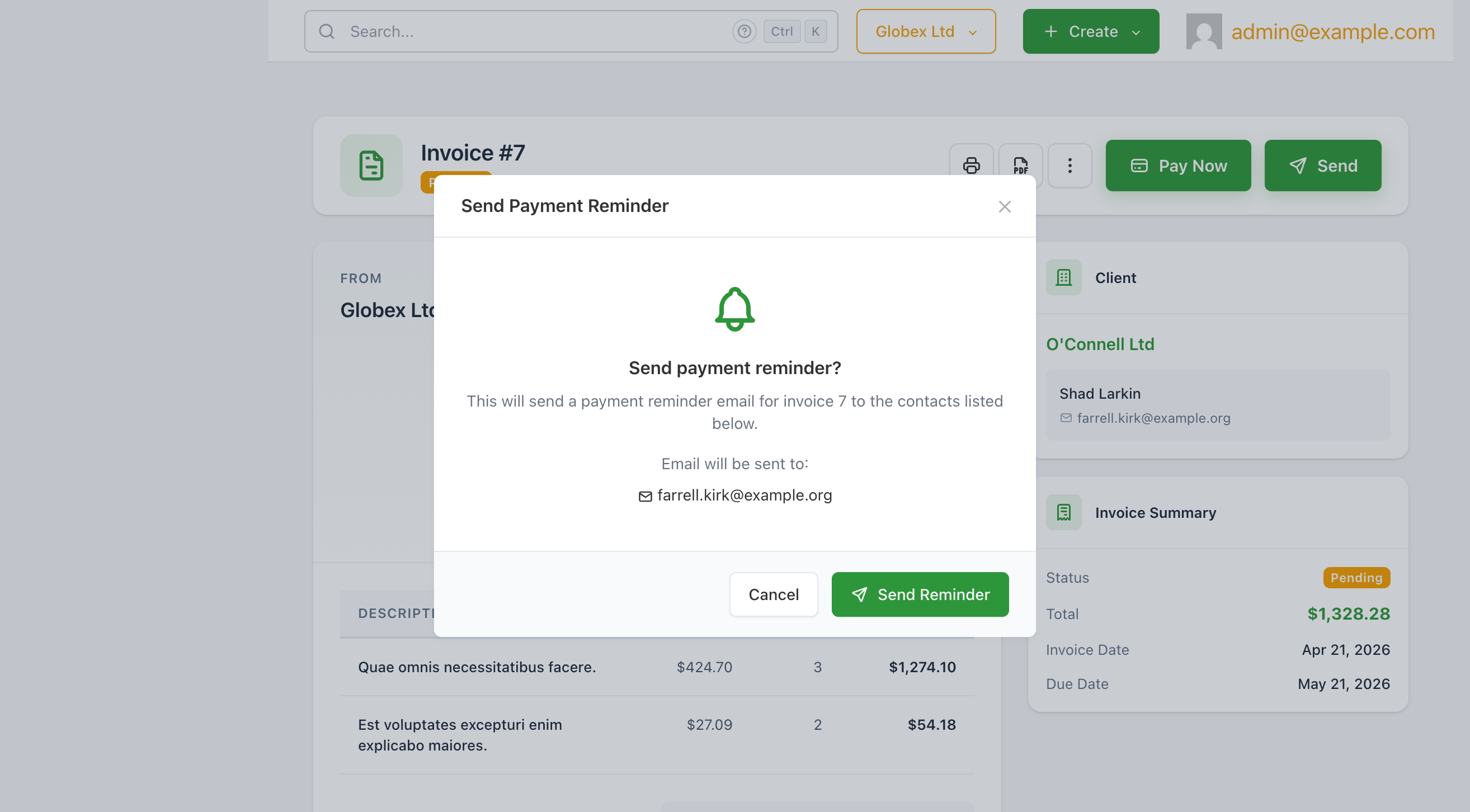
Click Send Reminder to dispatch the email immediately. If the invoice has no contacts with an email address on file, the option will not be available.
The invoice must have at least one contact with an email address. If the client has no contacts set up, the Send Reminder option will not appear.
After the final reminder
After the day-14 automated reminder is sent, SolidInvoice stops sending automated reminders for that invoice and sends an escalation notification to your internal users. This notification signals that the automated cycle is complete and manual follow-up is needed — for example, contacting the client by phone, offering a payment plan, or reviewing next steps.
Manual reminders via the UI remain available at any time even after the automated cycle ends.