Managing invoices
The invoice list
Go to Invoices in the sidebar to see all your invoices. The top of the page shows four summary cards:
- Total Invoices — the number of active invoices.
- Pending — how many invoices are pending (with an overdue count in brackets).
- Total Income — the sum of all paid invoices.
- Outstanding — the total amount still owed across all unpaid invoices.
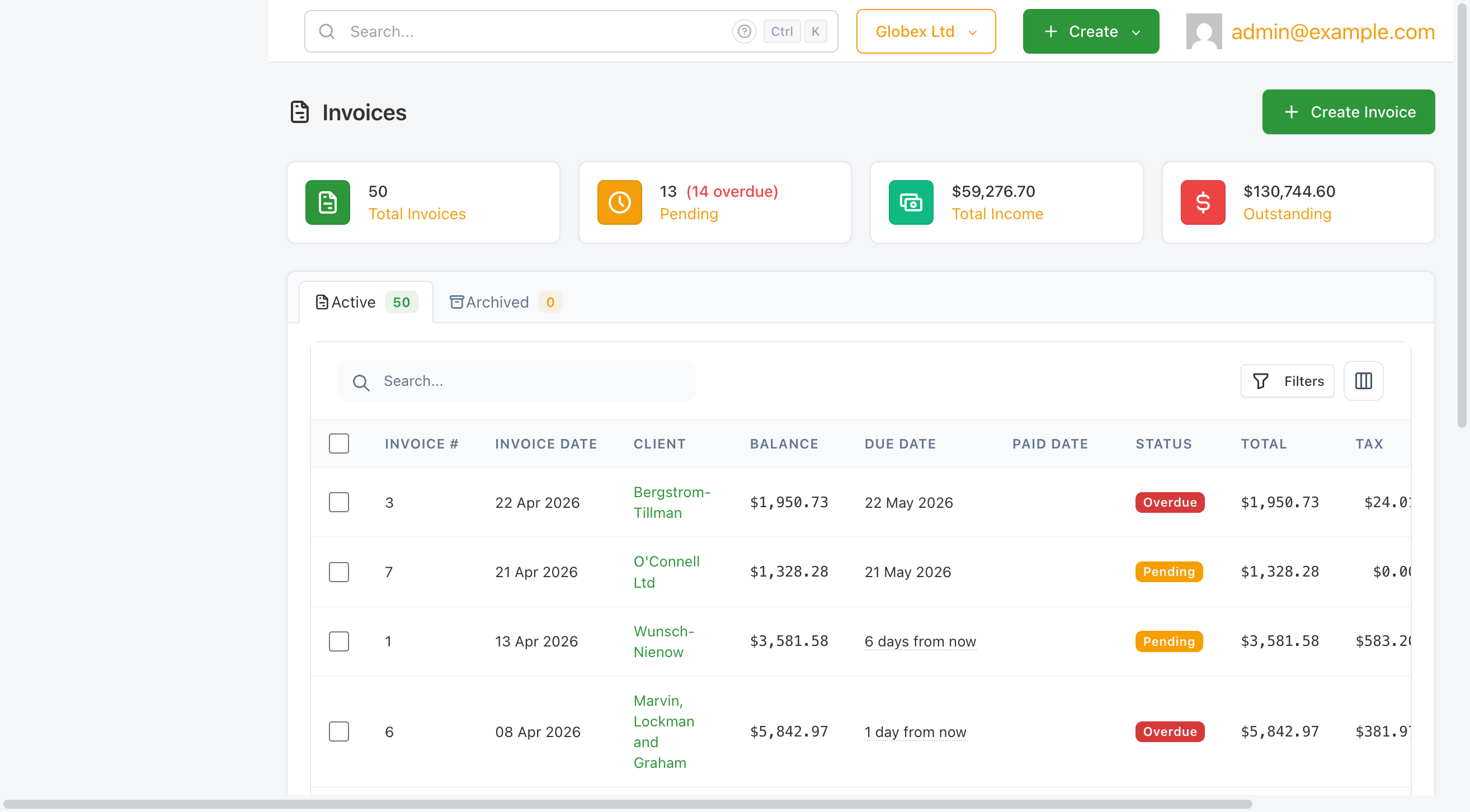
The table below the cards lists every invoice with these columns: Invoice #, Invoice Date, Client, Balance, Due Date, Paid Date, Status, Total, Tax, and Discount. Click any column header to sort by that column.
Use the Search box to filter by invoice number or client name. Use the Filters button to filter by status, date range, or other criteria. Use the Columns button to show or hide individual columns.
Archived invoices
The Archived tab shows invoices you have archived. Archived invoices are hidden from the active list and from outstanding balance calculations. They are not deleted and can be viewed at any time.
Viewing an invoice
Click View in the Actions column of any invoice row to open the invoice detail page.
The detail page shows the full invoice: your company details on the left, the client's details on the right, a line-by-line breakdown of what was charged, and totals at the bottom. If the invoice has terms or notes, these appear below the line items.
The Invoice Summary panel on the right shows the status, total, invoice date, due date, and — for paid invoices — the paid date and outstanding balance.
The Client panel shows the client name (linked to their profile) and the contact who will receive invoice emails.
Editing an invoice
Click Edit from the invoice list actions or from More Actions on the invoice view page to open the edit form. The edit form is identical to the create form.
You can edit an invoice in any status, but changes to a Pending or Overdue invoice will not automatically re-send the email to the client. Use Send after editing if you want the client to receive an updated copy.
Cloning an invoice
Cloning creates a new invoice pre-filled with the same client, line items, discount, terms, and notes. The clone starts with New status and a new invoice number — none of the original's dates or payment history carry over.
To clone an invoice:
- Open the invoice view page.
- Click the
···More Actions button. - Select
Clone.
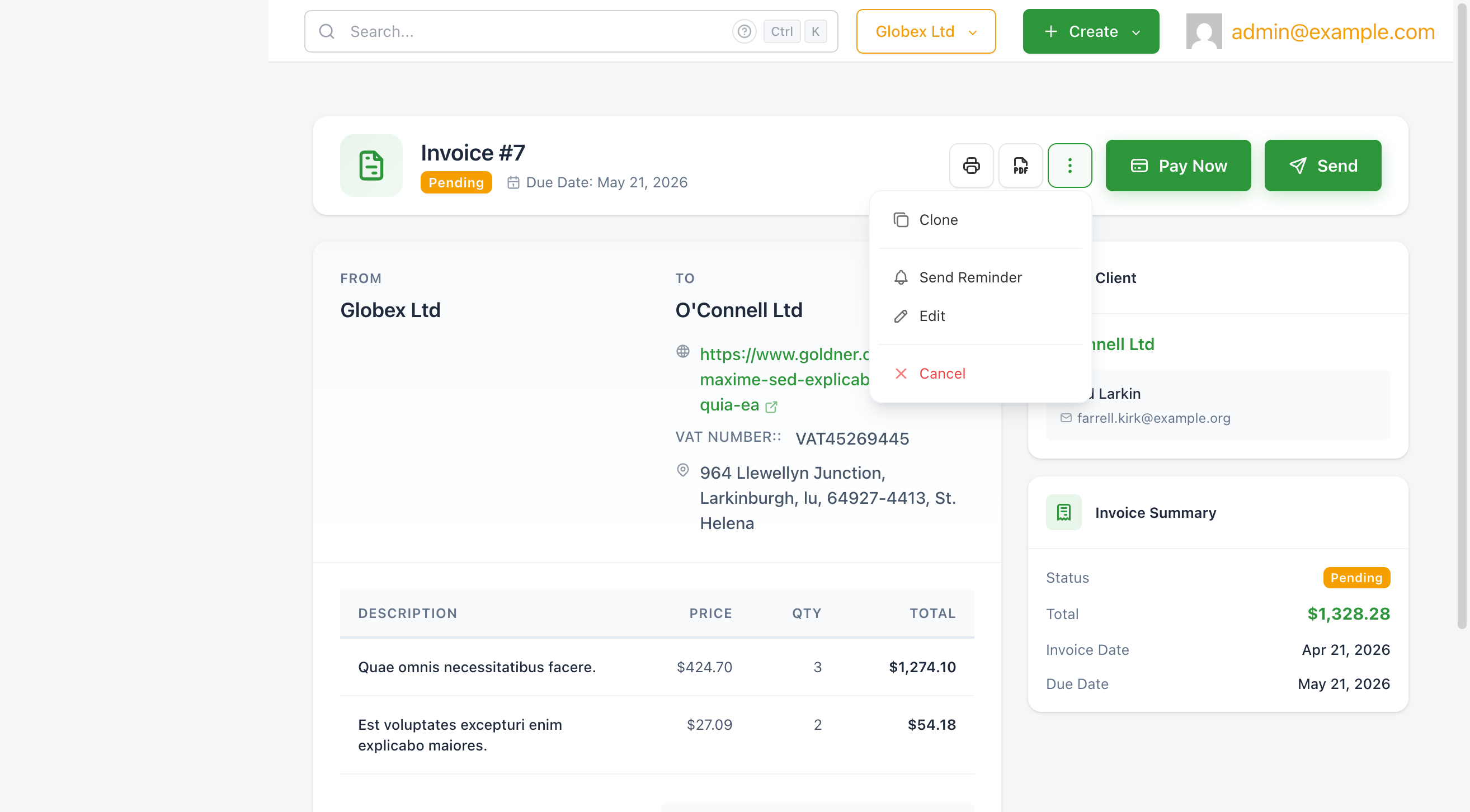
The cloned invoice opens in the edit form so you can adjust dates and amounts before saving.
Cloning is the fastest way to create recurring one-off invoices for the same client with the same services. For automatic recurring billing, use Recurring Invoices instead.
Cancelling an invoice
Cancelling an invoice marks it as Cancelled, stops all automated payment reminders, and converts any recorded payments into client credits.
To cancel an invoice:
- Open the invoice view page.
- Click
···More Actions →Cancel. - Confirm the cancellation in the dialog.
Cancellation cannot be undone. If you need to re-issue the invoice, clone it first and then cancel the original.
Archiving an invoice
Archiving moves a completed or cancelled invoice out of the active list. It does not delete the invoice or affect any financial totals — it simply keeps the active list clean.
To archive one or more invoices, check the checkboxes in the invoice list and use the bulk-action controls that appear, or use the ··· More Actions menu on a single invoice view.
Archived invoices are visible in the Archived tab on the invoice list page.