Invoice statuses
Every invoice in SolidInvoice has a status that reflects where it is in the billing lifecycle. The status controls which actions are available and whether automated reminders apply.
Status overview
| Status | Badge colour | Meaning |
|---|---|---|
| New | Grey | The invoice has been cloned or created programmatically and has not yet been saved as a draft or published. |
| Draft | Blue | The invoice is saved but not yet sent to the client. You can still edit it freely. |
| Pending | Yellow | The invoice has been published and the client has been notified. Payment is expected. |
| Overdue | Red | The due date has passed and the invoice has not been paid. |
| Paid | Green | The invoice has been paid in full. |
| Cancelled | Grey | The invoice has been cancelled. Any payments already recorded are converted to client credits. |
Draft
A draft invoice is saved but not visible to the client. You can edit every field — line items, dates, discounts, terms — without any restriction.
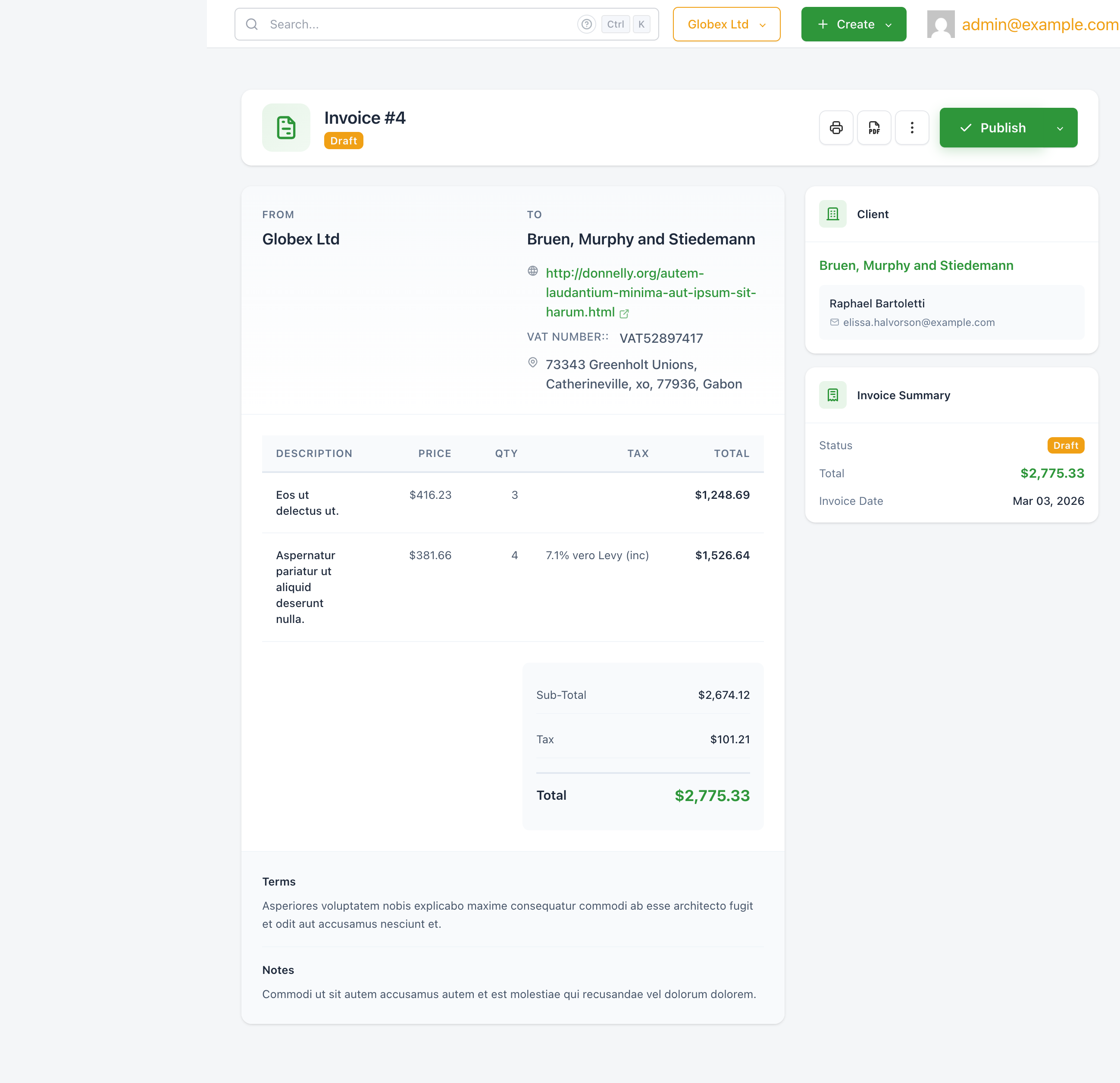
Available actions: Edit, Publish, Clone, Cancel.
The Publish button (with a dropdown arrow) transitions the invoice to Pending. The dropdown also offers a Send option that publishes and emails the invoice in one step.
Pending
A pending invoice has been published and the client is expected to pay. The invoice date, amount, and client are locked for editing.
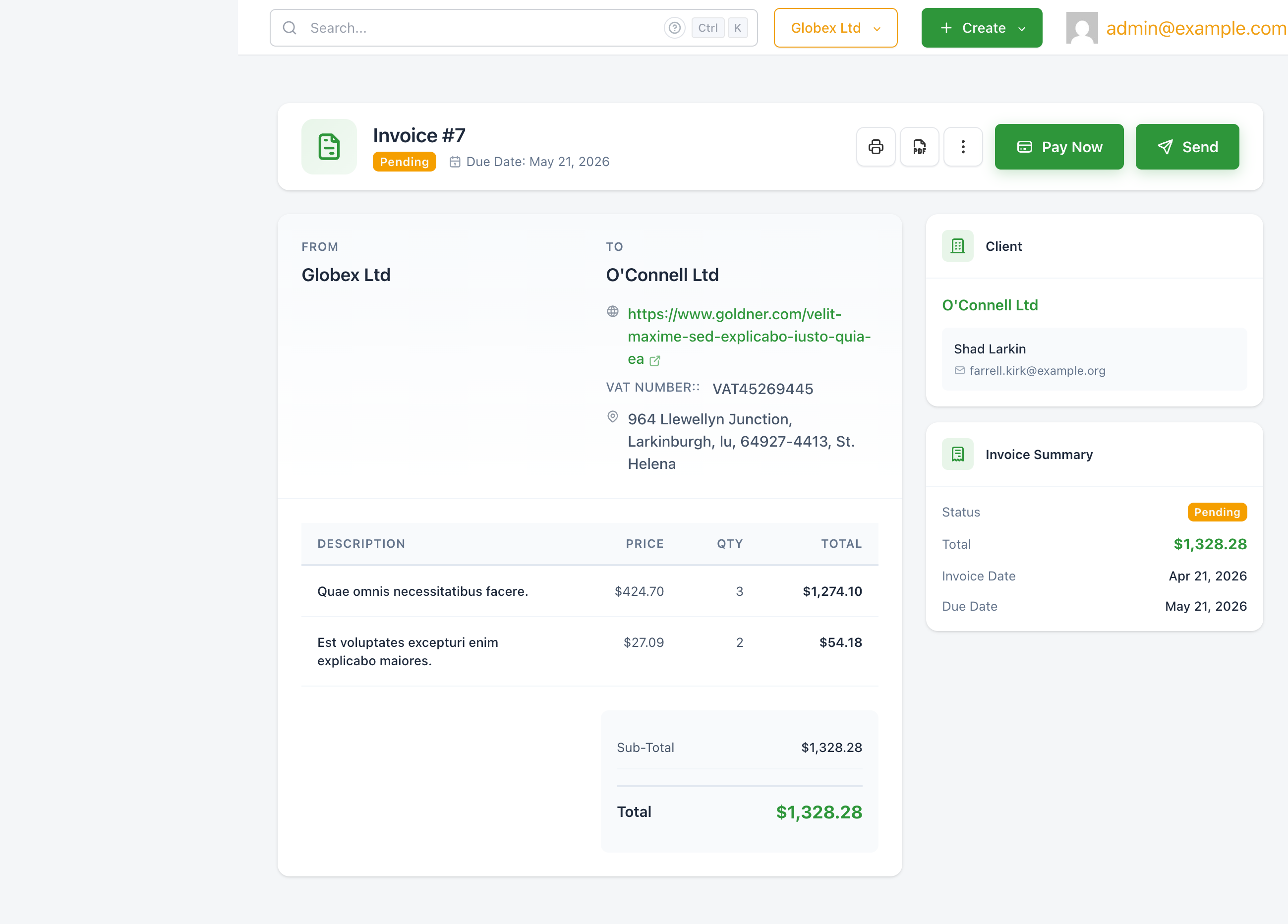
Available actions: Pay Now, Send, Clone, Send Reminder, Edit, Cancel.
- Pay Now — record a payment against this invoice.
- Send — email the invoice to the client again (useful if the original email was missed).
SolidInvoice automatically tracks the due date and transitions the status to Overdue when it passes.
Automated payment reminders only run for invoices with a Pending or Overdue status. See Payment reminders for how to configure them.
Overdue
An overdue invoice is a pending invoice whose due date has passed. The status badge turns red and the due date is highlighted in the Invoice Summary panel.
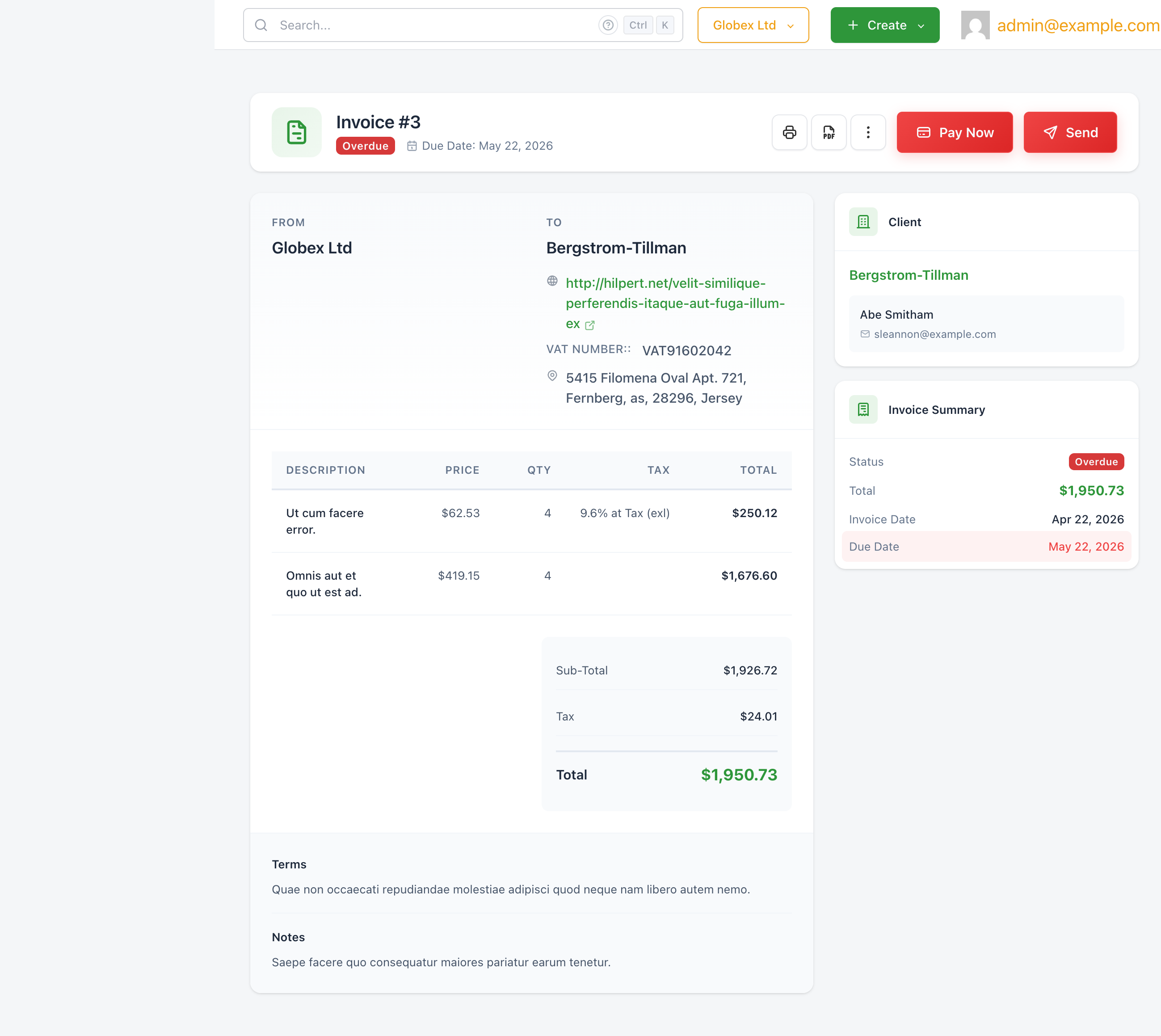
Available actions: Pay Now, Send, Clone, Send Reminder, Edit, Cancel.
The available actions are identical to Pending. Automated reminders continue to fire on the overdue schedule (day 1, day 7, day 14).
Paid
A paid invoice is closed. The Invoice Summary shows the payment date and the outstanding balance.
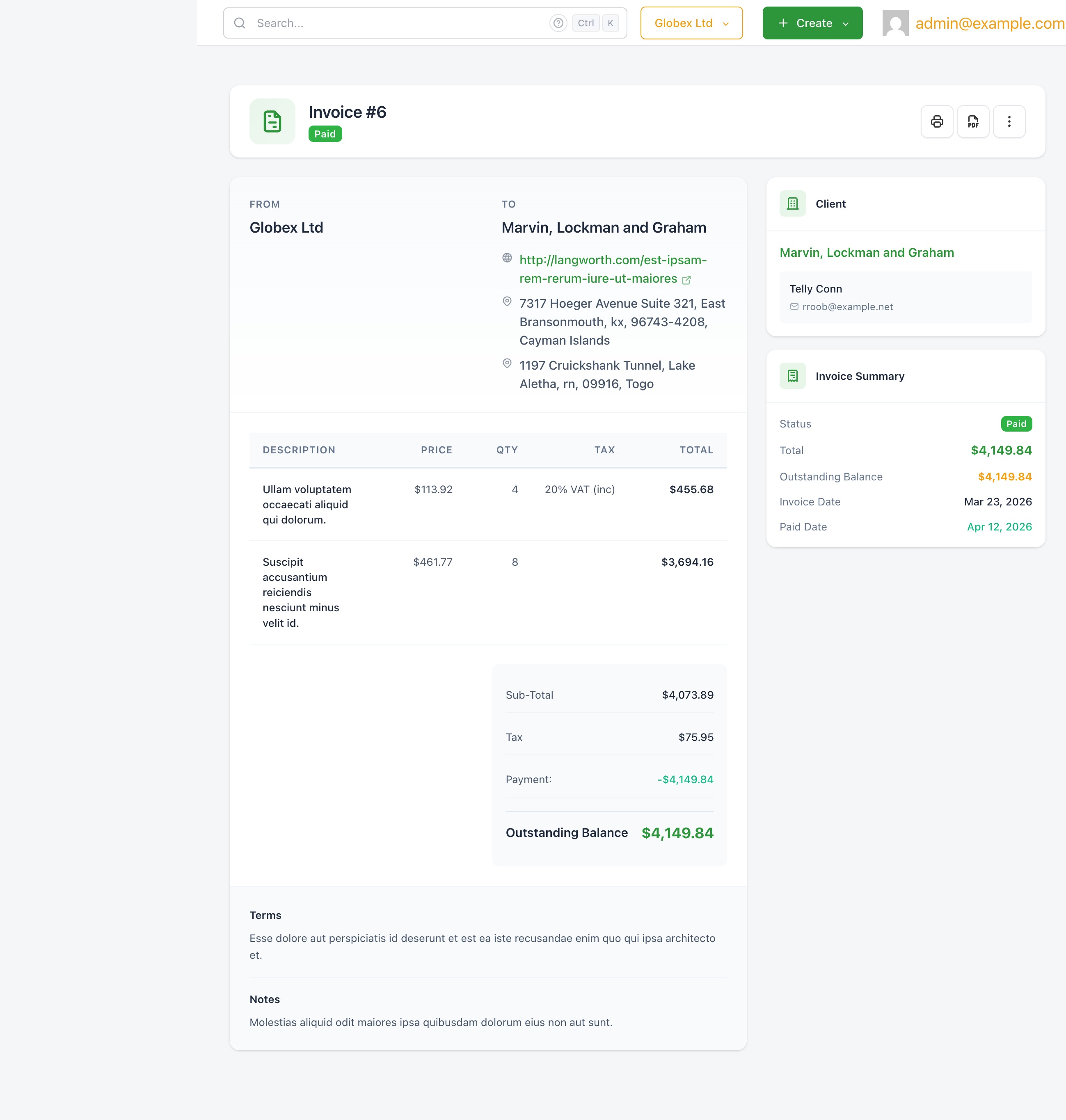
Available actions: Clone, Download PDF, Print.
No payment or send actions are available once an invoice is paid. You can still download the PDF or print it for your records.
Cancelled
Cancelling an invoice does two things:
- Sets the status to Cancelled and stops all automated reminders.
- Converts any payments already recorded on the invoice into client credits, which can be applied to future invoices.
To cancel an invoice, click the ··· More Actions button on the invoice view and select Cancel. A confirmation step prevents accidental cancellations.
Cancellation cannot be undone through the UI. If you cancelled by mistake, the only recovery path is to clone the invoice and re-issue it.
Status transitions at a glance
Draft → Pending  (Publish or Save and Send)
Pending → Paid   (payment recorded)
Pending → Overdue (due date passes, automatic)
Overdue → Paid   (payment recorded)
Pending → Cancelled
Overdue → Cancelled
Any status can be cloned to create a fresh New invoice.